Cue Editor
There are three sections to the Cue Drop Down Menu, they are:
Cue Edit Window
Sort all cue Numbers
Add an offset to Cue Numbers
The Cue Editor Window is where one or more cues can have their attributes altered and where presets may be applied to one or more fixtures.
The Bottom Section of this Window is dedicated to the Cue Summary Display, This is a large dialogue box used to display the attributes of each Cue: number, description, time-in, time-out, Follow-on time, Link, MCI command, Date and Time of recording. Using this window it is possible to change the Cue number, and to insert individual Cue parameters that are not immediately accessible on the recording window.
Cue summary display
This section displays a complete summary of all recorded Cues. A large dialogue box is used to display the attributes of each Cue: number, description, time-in, time-out, Follow-on time, Link, MCI command, Date and Time of recording. Using this window it is possible to change the Cue number, and to insert the following Cue parameters that are not immediately accessible on the recording window:
A Link to perform automatic linking with one of the recorded Cues.: If you insert a link on Cue 5 to Cue 2 every time you arrive at Cue 5 a jump to Cue 2 will be executed.
A Link with a Loop number specification : In the link cell insert the number of Cue to link to, followed WITHOUT ANY SPACE by letter " L " and the number of loops that you wish to execute. For example if in Cue 5 you insert in the link cell " 2L3 " the Cue will jump three times from Cue 5 to Cue 2, after the third time your sequence will continue normally.
A MCI command (Media Control Interface) that will be executed at crossfade start time. Here are some examples:
Play cdaudio from 1 to 2 (plays the first track of a CD-Audio)
Stop cdaudio (stops CD-Audio play)
Chaser1 On (start Chaser1 with the menu-bar options)
Chaser1 Off (stops Chaser1).
Look at the MCI Command Examples in the Multimedia Commands section to see more examples like these
Moving Back to the top Porttion of the Window, We have:
Position & Colour and Gobo Preset Section
A preset can be stocked in any cue, and it is exactly like a normal cue, that you can define with descriptive text, in which you can include as many fixtures you want.
To recall a position (or Colour or gobo) you have to follow this procedure :
Open the Cue Edit window
Select a Cue just clicking on the "Sel" tab in the Cue Editor Grid. The number of active cue will be displayed in the top of the preset frame.
Select the fixtures you want to copy in the moving light selection window (you can fast access this window clicking the last button of the frame)
Click on the button for the action you want (All = Copy all the parameters on Preset A, Position copies only positions, Colour copies only CMY and fixed colour, Gobo copies gobo's settings)
Record the scene you have modified on Preset A
Select Cues for Collective Modification Section
This is one of the most advanced functions of ProSceniumDMX and allows to select one or more Cues to be collectively modified. The different actions provided by ProSceniumDMX are described in the following.
It is good recommended practice to save the show on a backup file before using this function as there can be a loss of important information due to errors made by a non-experienced user.
a1) Select Cues for Collective modification on Cue Text
To select Cues for collective modification, just key a string to search. For example, take a situation where multiple Cues have been recorded involving the curtain, like "Curtain Open", "Curtain Closed" etc. Keying in the "Curtain" string will make the ProSceniumDMX identify all Cues that contain the keyword and select them all for collective modification.
Once you have selected the action you require, ProSceniumDMX will show the result of the search and prompts for confirmation.
a2) Select Cues for Collective modification on Cue Number
To select Cues, just type the number of the first Cue of the interval selected for collective editing, followed by the number of the last memory in the interval.
Once you have selected the action you require, ProSceniumDMX will show the result of the search and prompts for confirmation before continuing.
This function is also used to perform scanner re-calibration (refer to Scanner/Moving Light section for further details).
Select all Cues

Click on this button to select all Cues.
Having Selected the Cues that you wish to edit, you may select the actions from the Blue Box on the Right Hand Side
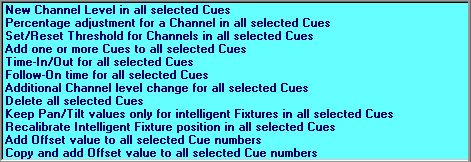
b1) New Channel Level in all selected Cues
This option allows a channel level be collectively set to a new value (e.g. cleared) in all selected Cues.
b2) Percentage adjustment for a Channel in all selected Cues
This function allows a channel be proportionally adjusted in all selected Cues.
This can be very useful when touring a show. For example, if the new theatre has the distance of the stage from the stalls reduced by 50%, using this feature allows the intensity of the spots directed from the stalls to be reduced by the same rate to obtain the original lighting balance, this can be automatically done in all Cues with a single advanced command.
b3) Set/Reset Threshold for Channels in all selected Cues
This function allows the setting of a threshold value below which all channels are cleared in all Cues. This is useful to clean up channel selection at very low percent (e.g. 3%, 5%) that are usually due to user mistakes. Be careful to avoid using this function if colour scrollers or scanners are used as in this case a low channel value may be significative.
It is also an easy way to set all values to 0 ( by setting the percentage at 100 )
b4) Add one or more Cues to all selected Cues
This option lets one or more Cues be added to all selected Cues, allowing the addition of a new lighting element common to multiple scenes.
b5) Time-In/Out for all selected Cues
This option allows a collective time-in/out change in all selected Cues.
b6) Follow on Time for all selected Cues
This option allows a collective change of the "link: attribute of all selected Cues The user is double-prompted for confirmation before the change can be committed by ProSceniumDMX, and the previous values are restored if confirmation is negative.
b7) Additional Channel level change for all selected Cues
This function is used to raise or lower a circuit in all selected Cues. It is particularly useful when a show is toured along. If, for instance, the distance of spots directed from the stalls is reduced, an increment of 10 may be applied to the selected channel. This is especially useful to reposition all motorised luminaires, automatically in all Cues
b8) Delete all selected Cues
This option allows to delete all selected Cues. The user is double-prompted for confirmation before the change can be committed by ProSceniumDMX.
b9) Keep Pan/Tilt values only for intelligent Fixtures in all selected Cues
This option allows you to leave only Pan and Tilt information for the moving light, erasing all other information.
b10) Recalibrate Intelligent Fixture position in all selected Cues
See "Automatic Scanners Recalibration" section in the Scanner/Moving Light section
b11) Add offset to all selected Cue numbers
This option allows to add an offset to all selected Cue Numbers.
For example you can rename Cues 1, 2, 3, 4 as Cues 101, 102, 103, 104.
b12) Copy and add offset to all selected Cue numbers
This option allows to copy and add an offset to all selected Cue Numbers.
For example you can make a copy of Cues 1, 2, 3, 4 and rename them as Cues 101, 102, 103, 104.
Note that the destination number has to be available for ProScenium to create copies otherwise you may have strange results.
Ensure that you make a backup copy of your file before starting this operation.
Cue renumbering
"Cues"-> Sort all Cue numbers
Cue numbers may be redefined as an ordered integer number list. In this way a complex number sequence originated by multiple insertions, like 1, 5, 10, 11.1, 11.15, 11.2, 11.5 may be renumbered as 1,2,3,4,5,6,7 in a way that is more natural and easier to read.
This is particularly useful to clean a show up at the end of the design. You can also add an offset to this number (e.g. 100) so your Cues would be renumbered 101, 102...
"Cues"-> Add an offset to all Cue numbers
In this menu you may simply add an offset without renumbering Cues.
Contents