Hardware Set Up
Hardware Installation
Using the Martin ProSceniumDMX ISA card
Introduction
The Martin ProSceniumDMX ISA card allows configuration of the ProSceniumDMX in standard desktop PC's.
Note: the DMX I/O card can be damaged by static electricity. Follow the usual procedures to prevent electrostatic discharge: always release static electric charge by touching a grounded metal object before handling the card. In any case always handle the card by its bracket and edges, avoid touching the components directly.
Installation procedure
The Martin ISA card is a memory-mapped I/O device. Before installing the card, the occupation of the PC memory space by the different devices must be checked in order to verify the correct allocation of the card in the system.
This can be done within Windows95™ through the following steps:
Right-Click on "My Computer"
Click on "Properties"
Click on "Device Manager"
Click on "Properties"
Click on "Memory"
This operation opens a window that details the memory assignment.
The Martin DMX ISA card may use any available 2KB block in the "D" segment, that is a 1000 (hexadecimal) wide block in the 000D0000-000DFFFF (hexadecimal) space.
The default address (or factory setting) of the Martin ProSceniumDMX ISA card is 000D1000 (hexadecimal). Check that this area is available, if it is not, locate an available region and make a note of the address for later use in card DIP-switch configuration.
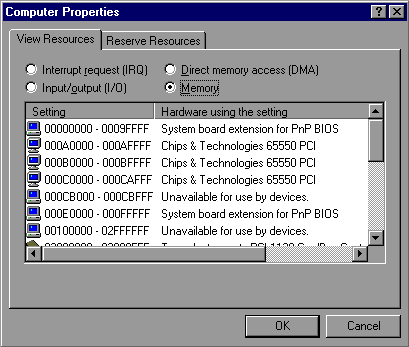
In this instance, there is no allocation in the "D" Block of memory, therefore any address in the "D" Block may be used.
The DIP-Switches are the small switches on the side of the Card opposite the mounting bracket. The switches take the form of 10 small switches mounted together, these are numbered from 1 to 10 and may be switched to OFF or ON positions.
These DIP-switches are used to select the start (or base) address of the used memory area.
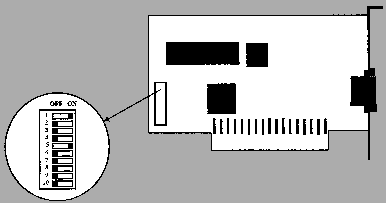
To set the DIP-switch to match the previously recorded memory address, set all switches to "OFF" and then set to "ON" the switches corresponding to the selected address as shown in the following table:
BLOCK ADDRESS RANGE DIP-switches ON
D0 000D0000-000D0FFF 5
D1 000D1000-000D1FFF 1,5 (DEFAULT)
D2 000D2000-000D2FFF 2,5
D3 000D3000-000D3FFF 1,2,5
D4 000D4000-000D4FFF 3,5
D5 000D5000-000D5FFF 1,3,5
D6 000D6000-000D6FFF 2,3,5
D7 000D7000-000D7FFF 1,2,3,5
D8 000D8000-000D8FFF 4,5
D9 000D9000-000D9FFF 1,4,5
DA 000DA000-000DAFFF 2,4,5
DB 000DB000-000DBFFF 1,2,4,5
DC 000DC000-000DCFFF 3,4,5
DD 000DD000-000DDFFF 1,3,4,5
DE 000DE000-000DEFFF 2,3,4,5
DF 000DF000-000DFFFF 1,2,3,4,5
Once the DIP-switch is set as described, the card may be installed by carrying out the following steps:
i). Turn off the computer and disconnect the power cord to avoid risk of injury.
ii). Then remove the cover, find an available ISA expansion slot (check the PC manual for instructions) remove the slot cover plate from the back of the chassis.
iii). Save the screw for fastening the DMX I-O card after installation
iv). Holding the card by the bracket and the edge, push the copper finger connector into the expansion slot, seating it firmly and fixing it with the saved screw
v). Replace the cover and reconnect the power cord
vi). Connect the DMX cables as required by the application
vii). Turn on the computer and start ProSceniumDMX program
viii). Use the Hardware Choice section in the Configuration Panel to setup the correct address
ix). Quit the ProSceniumDMX program and restart it for the configuration to take effect
Note: after installing the card, the selected address space will be declared used by Windows95™. To verify that the board is detected by the system, check that the selected address space is flagged "Unavailable for use by device". you may do this by using the procedure detailed below:
Right-click on "My Computer"
Click on "Properties"
Click on "Device Manager"
Click on "Properties"
Click on "Memory"
If the card is still not detected see: Hardware Troubleshooting
Martin DMXADP LPT Parallel Port adapter
Introduction
Martin DMXADP Parallel Port adapter allows the ProSceniumDMX to be configured in both desktop and notebook PC platforms.
Note: the DMADP adapter can be damaged by static electricity. Follow the usual procedures to prevent electrostatic discharge: always release static electric charge by touching a grounded metal object before handling the adapter.
Installation procedure
Unlike the ISA card mentioned earlier, the DMXADP does not require the computer to be opened or require any specific settings. The device should just be installed following these steps:
i). Turn off the computer and disconnect the power cord to avoid risk of injury
ii). Locate the Parallel Port (25-pin D-type female connector)
iii). Locate the mouse or keyboard port (PS/2 6-pin female or DIN 5-pin female)
iv). Connect the DMXADP adapter body to the Parallel Port, fastening it with the two screws
v). If the selected mouse or keyboard port is an optional expansion port, simply connect the male PS/2 connector of the DMXADP cable in the port (using the PS/2 to DIN adapter if required)
vi). If the selected mouse or keyboard port is used by a peripheral, interconnect DMXADP in pass-through mode using both the male and female PS/2 connectors of the DMXADP cable (using PS/2 to DIN adapters if required)
vii). Connect DMX cables as required by the application
viii). Turn on the computer and start the ProSceniumDMX program
ix). Select the address of the Parallel Port using the Configuration Panel
x). Quit the ProSceniumDMX program and restart it for the configuration to take effect
If the DMXADP adapter is not detected see: Hardware Troubleshooting
For further information see the Hardware Choice section in the Configuration Panel Help File`
Contents