Hardware Troubleshooting
DMX interface does not turn on :
Check connection to power supply
Check connection to PC Parallel Port
DMX Interface turns on but there is no dimmer output:
Ensure that you have an Official copy of the program rather than a Demo or Illegally Duplicated version
Check the Set up for the Parallel Port in ProSceniumDMX configuration panel
Click the System Icon in Win95 Control Panel:

Move to Parallel Port setup

Verify that ProSceniumDMX configured LPT base address match the one specified by Win95, and change it to match if it does not
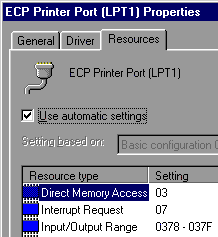
Verify connection of LPT and DMX cables
Verify that Master is selected at 100%
Verify Patch (possibly defaulting to 1:1 to be sure)
Verify that Patch Level is at 100%
Verify that Curve is at 0 (linear)
Using the Martin ProSceniumDMX ISA card
If using the instructions in the Hardware Set Up section, the card is still not selected by the ProSceniumDMX program, Check the following :
If the ProSceniumDMX cannot find the transmitter card during autodetect
If the ProSceniumDMX is unable to locate the transmitter card it might be because the address set on the card collides with another piece of hardware installed in the PC, or because Windows already reserves the memory area for other purposes.
Switch off the computer and remove the card.
Check with the Windows device manager that other resources do not use the relevant memory block.
Change the card's DIP switch settings to another address if necessary (refer to the ProSceniumDMX printed manual).
In master mode, no signal is detected by DMX receivers (dimmers, etc.)
If a new DMX fixture (receiving module) is being used, check it for full compliance with USITT DMX-512/1990. If DMX marginal timings are suspected, use the "Reduced Rate" feature in ProSceniumDMX Configuration Panel to relax DMX timings.
If the problem persists, verify the output of the card in Master Mode with a DMX tester or another ProSceniumDMX system used in Slave Mode.
If problems are found with the DMX signal, contact your dealer for assistance.
There are no user-replaceable parts on the DMX card.
Using the DMXADP adapter
If using the instructions in the Hardware Set Up section, the card is still not selected by the ProSceniumDMX program, verify all of the settings in the following order:
Check the connections of the DMXADP adapter to the PC
Verify the address of the Parallel Port using Windows95™ Control Panel as described in the ProSceniumDMX program configuration section.
Check the following :
Having turned on the PC, the Status LED on the adapter does not illuminate
This indicates that either the DC power is not properly applied to DMXADP or the internal micro controller has not passed Built-In-Self-Test. Make sure that the DMXADP cable is properly connected to the Keyboard/Mouse port and recheck. Try on a different PC to exclude the possibility of a defective Keyboard/Mouse port. If, after checking the power supply the LED does not illuminate, contact your dealer for assistance.
The ProSceniumDMX software reports "Sense Time-out" errors
Something is wrong in the communication between the PC and DMXADP. Check the connection of the LPT connector. Avoid switching power off to DMXADP while PC is still on: always power on DMXADP while powering on the PC. If the problem persists, contact your dealer for assistance.
In master mode, no signal is detected by DMX receivers (dimmers, etc.)
If a new DMX fixture (receiving module) is being used, check it for full compliance with USITT DMX-512/1990. If DMX marginal timings are suspected, use the "Reduced Rate" feature in ProSceniumDMX Configuration Panel to relax DMX timings.
If the problem persists, verify the output of the card in Master Mode with a DMX tester or another ProSceniumDMX system used in Slave Mode.
If problems are found with the DMX signal, contact your dealer for assistance.
If the ProSceniumDMX cannot find the DMXADP adapter during autodetect
To save battery power, most laptops come with an option to save as much power as possible during normal operation. The DMXADP adapter needs both the external keyboard connector and the parallel port enabled on the PC. By default these are often disabled.
There is no standard way of telling if the external keyboard and the Parallel port are enabled, since most manufacturers implement their own ways of configuring the PC power-saving options. Checking and changing status may both involve settings in the PC BIOS and in Windows or maybe even a third type of application.
· Make sure that the external keyboard is enabled.
· Make sure that the Parallel port is enabled.
If the ProSceniumDMX found the DMXADP adapter during autodetect, but there is no signal reaching the fixtures.
Again the most likely culprit is the power saving settings on the PC. Make sure that both the parallel port and the external keyboard are enabled. As a last resort try disabling all power saving features on the PC, including all possible settings in the BIOS and Windows.
There are no user-replaceable parts on the DMXADP adapter.
Contents