Create my own Fixture Personality ??
Creating your own Fixture Personality is quite simple, you quite simply use the Spot List Maintenence Utility.
This is accessed by clicking on "Start", "Programs", "Martin ProScenium DMX", "Spot Maintenence Utility". This will open up the box that is shown below.
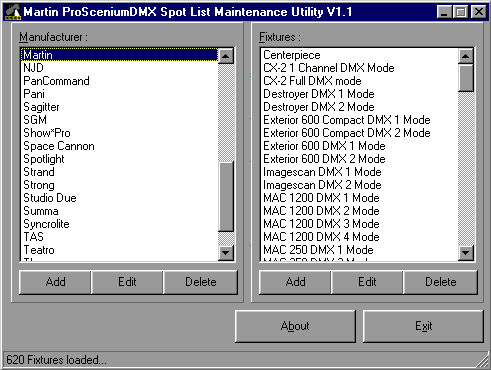
As you can see, there is a list of Manufacturers on the Left Hand Side, under these, there is the option to "Add" another or new manufacturer to the list, "Edit" the existing manufacturers name, or "Delete" the manufacturer completely along with all of the Fixture Personalities.
Note:- Take Care when doing this as a deleted manufaucturer cannot be retrieved without reinstalling or updating the ProScenium Software
On the Right Hand Side, there is a list of Fixtures that are manufactured by each of the Manufacturers on the Left Hand Side, again there is the option to "Edit" one of the existing fixture parameters, "Delete" the Personality, or "Add" a new fixture to the list.
When you click on the "Add" or "Edit" Buttons.... A new screen like the one below will be displayed.
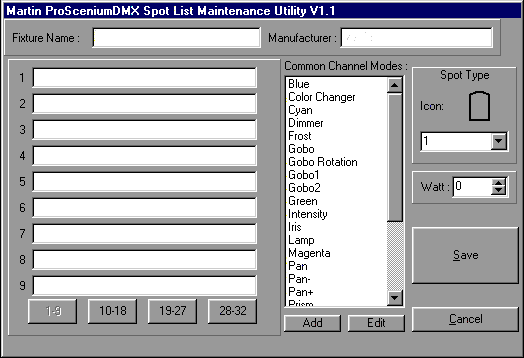
This will give you the option of configuring a fixture with up to 32 parameters, the boxes on the Left Hand Side of the Screen relate to the Output Channels 1-9, 10-18, 19-27, 28-32 as designated by the four boxes at the bottom.
On the Right Hand Side there is a series of Common Channel Modes which are the most standard means of control, these may be inserted into the Output Channel Boxes by simply clicking with the Left Mouse Button, holding and dragging to the respective Box.
If you wish to add your own parameter, say "Prism Rotation", you may do this by clicking on the "Add" Button and typing in the New Name. Likewise, Clicking on the "Edit" Button will enable you to change an existing Name.
Across the top of of the box are spaces for the Manufacturer Name and the Fixture Name whilst on the Far Right Hand Side you may select an Icon that gives the best indication of the Fixture type and also the Wattage of the Fixture.
All Changes that are made here will be reflected in the Channel Options Box that is opened when you click on a Channel No. on the Main Fader Panel.
Contents