Groups

The Group window may be opened by clicking on the toolbar icon, or by using the "Window" menu
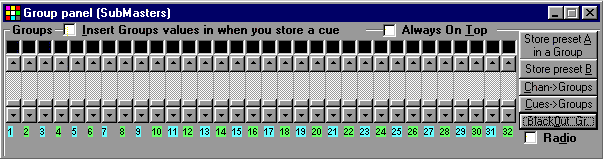
Groups are a very useful tool for lighting console programming.
A scene may be transferred into one of 32 defined groups. To give an example as to how this works, the user may group all the spots lighting the stage from the stalls by setting them at a desired intensity and then store them into a group. The resulting group will be managed like a single channel with a description and a level, but will be displayed in the Group Window using different colours than channels for clarity of representation.
Group logic is as follows, the group is superimposed on to the active scene, but it does not overwrite the pre-existing values. When a group is removed, the scene is restored to the pre-existing value.
The value of a channel when included in a group, if higher than the value selected using the normal procedure, is displayed in a different colour. During Playback, Groups are always kept active and may be removed from the active scene just clicking the "Blackout Groups" button.
An option is present in the Configuration Panel to let the user decide if groups should be considered or not when storing the scene in a cue.
The "Radio"  check-box allows to select only one group at a time. This means that if group No. 2 is selected and you select group No. 3, ProScenium automatically, in a single operation (the pushing of "F3" key), switch-off group No. 2 and switch on group No. 3.
It is very useful to put intelligent lights into groups in order to have instant access with the function keys.
A good way to make live shows with ProScenium.
The Check-box "Insert group values when you store a cue" allows you to decide whether to include the value of the groups when you are recording a scene on a preset.
Store a Preset into a Group

This function lets the active scene on Preset A be stored into a Group. The user is prompted for a group description string. Other active groups are included in this new group unless the "Insert group values when you store a cue" check-box is checked

This function lets the active scene on Preset B be stored into a Group (also in blind mode). The user is prompted for a group description string. Other active groups are not included in this new group unless the "Insert group values when you store a cue" check-box is checked
Editing a Group
A group may be edited by editing the active scene and then storing it back in the Group as originally done when creating the Group.
Group playback
There are two ways in which the Groups can be activated,
Mouse: on selected Group
ON-OFF Keys: " F1 " -> " F10 " (+Ctrl +Shift +Alt)
Groups may be operated with mouse in much the same way as channels are operated. For example channels assigned to the group may be selected for level adjustment clicking the group with the left button. Also, the mouse button may be used on the window to perform flash and toggle functions.
If you click on the number underneath the Group Fader and keep the Left Button of the Mouse pressed, a group may be dragged into a preset. In this way, after the prompted confirmation by the user, a group may be inserted in a preset in channel form (yellow) rather than in group form (violet).
An additional, useful hot-key access capability is provided to control groups in an ON-OFF toggle fashion using function keys F1 to F10.
Groups 1 -> 10 are accessed with straight "F1" -> "F10" keys,
Groups 11 -> 20 are accessed using the "Ctrl" + "F1" -> "F10"
Groups 21 -> 30 are accessed using the "Shift" + "F1" -> "F10"
and finally
Groups 31-32 are accessed using the "Alt" + "F1" - "F2".
The Chan ->Groups option allows automatic assignation of channel 1 to group1, channel 2 to group 2 and so on.
This is very useful to exploit the potential of the full-duplex feature of ProSceniumDMX.
Contents