Media Player
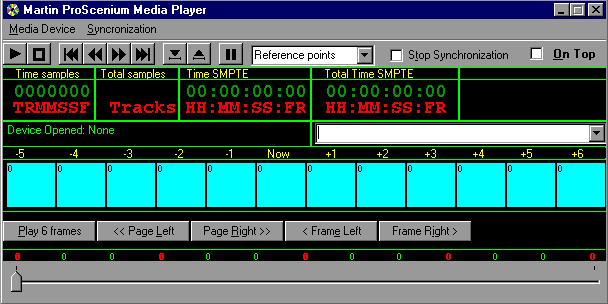
The Media Device
From the Media Device item you can select the Media Device to open.
From the Synchronisation menu you can ask ProScenium to automatically adjust the Synchronisation mode following the open device type of file.
Toolbar
The commands in the toolbar are as follows
 Play
Play
 Stop
Stop
 Previous Track (for the CD Player) or -100 frames for other Media Files.
 Fast Rewind
 Fast Forward
 Next Track (for the CD Player) or +100 frames for other Media Files.
 Take Reference point and enter it in the Reference Pull-Down Box.
 Go to beginning of the loaded file and start playing.
 Pause
Pause
The Reference Points Pull-Down Box.
You can store in this box several positions (by clicking on the 7th button of the toolbar).
Just clicking on the selected reference point will start the playback of the media file from the selected point.
The Stop Synchronisation Check Box.
Allows to Suspend/Resume the Main ProScenium Synchronisation.
The Always on top Check Box.
Allows you to put this Window on top of your other programmes displayed on your computer screen.
The Time Samples (Code) Box
This box shows the actual Time code that is being received
.
Clicking on this box will allow you to manually introduce a different starting position.
The Total Samples (Frames) Box
Displays the number of tracks for an Audio CD, or the total number of frames for any other Media Device.
The Time SMPTE Box
This Box displays the actual Time Code expressed in SMPTE at 25 FPS.
(Hours :Minutes :Seconds :Frames)
The Total Time SMPTE Box
This Box displays the actual Time code expressed in SMPTE 25 FPS.
(Hours :Minutes :Seconds :Frames)
The Recorded Cues Pull-Down Box
This is a list of recorded cues for a rapid Drag & Drop of cues in the Media Device frames.
Beside this Box is displayed the name of the open device.
The Frames Labels :
These 12 Labels represent a fraction of a Media File and has the number of the Frame printed on it.
The Red Label is the Media Device Current frame.
A Yellow Label represents the position that will execute the ProScenium Cue that has the same number as that of the Yellow label.
Clicking on these labels will perform the following action :
With Left Button :
Will play from the selected label until the last (12th) frame of the current frame page.
This is to find exactly the right position for Synchronising the Cue to the selected Media.
With Right Button :
If the label is coloured either Cyan or Red (with no cue recorded on it), this action will record preset A on the selected label.
If you click on a Yellow label, you can Move (by Dragging & Dopping) the reference point across the 12 selected frames.
Note: Dropping a yellow label on itself will delete the selected cue.
A Slider
This slider represents the whole media device.
You can use it to move across media files (on some devices this action will take a short while as it takes time for some Media to find the correct position).
The Command Buttons
There are 5 Command Buttons :
Play 6 Frames
This allows you to play 12 frames, and then automatically places the current position after 6 frames.
Very useful if you need to find a reference point within the media, always having the half of the previous page displayed.
Page Left
Moves the current page 11 frames to the Left
Page Right
Moves the current page 11 frames to the Right
Frame Left
Moves the current page 1 frame to the Left
Frame Right
Moves the current page 1 frame to the Right
Contents